Show Hidden Files on SD Card Android — How to View & Unhide
If you’re using an Android phone and your SD card photos, videos, or folders are missing, they might just be hidden. This guide will show you how to view hidden files on your SD card using Android’s file manager, Gallery, and recovery tips including iCare Recovery Free (Windows) for deeper recovery.
Why SD Card Files Are Hidden on Android
Files may become hidden due to:
- System settings: Android sometimes hides system or media folders by default.
- Virus or malware: Some malware hides files by changing their attributes.
- File corruption: Improper removal, sudden power loss, or app errors can hide files.
- Accidental hide: Users may unknowingly set folders as hidden.
Before using recovery software, it’s best to try Android’s built-in methods first.
Method 1: Using File Manager to Show Hidden Files
Most Android devices have a file manager app like My Files, Files by Google, or a manufacturer-specific app:
- Insert your SD card into your Android device.
- Open the File Manager app.
- Tap the menu (three dots) and select Settings.
- Enable Show hidden files.
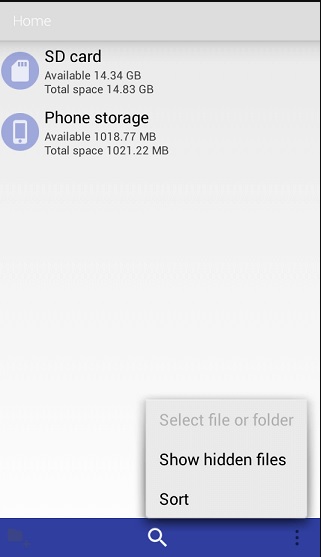
- Go back and navigate through your SD card — hidden folders should now be visible.
Method 2: Check Gallery or Secure Folder
Some phones automatically hide certain images or videos for privacy or system purposes. These hidden files are often stored in a secure area that doesn’t appear in your main Gallery view.
- Open your Gallery app.
- Tap Albums or Collections.
- Scroll to the bottom and look for folders named Hidden, Private, or Secure Folder.
- If you’re using a Samsung device, you can open Settings → Biometrics and security → Secure Folder to access hidden files.
- Move the photos or videos back to a visible album to make them appear in your gallery again.
Tip: If you use third-party gallery apps (like Google Photos or Simple Gallery), check whether they have their own hidden or vault folders.
Method 3: Using a Computer for Android SD Card
If your SD card files still don’t appear on your phone, try connecting the card to a computer. Some hidden files and folders may only be visible from a desktop environment.
- Remove your SD card from the phone and insert it into your computer using a card reader or USB adapter.
- On Windows, open File Explorer → click View → check Hidden items.
- On Mac, press Command + Shift + . (period) to show hidden files.
- Check for any hidden folders or files (for example, “.nomedia” or system folders) and copy your visible media to a safe location.
For more details, see: How to show hidden files on an SD card using a computer.
Method 4: Remove .nomedia file
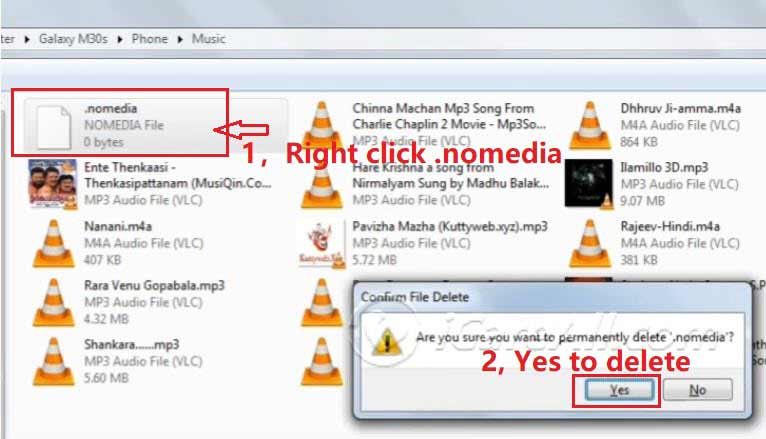
Android uses a special file named .nomedia to tell apps like Gallery or Music not to scan a folder. If a .nomedia file exists in your SD card’s directory, any images, videos, or music in that folder will remain hidden from view.
Steps to remove the .nomedia file:
- Insert your SD card into your phone or connect it to a computer.
- Open a File Manager app on your Android device (for example, My Files, Files by Google, or ES File Explorer).
- Tap the menu icon (⋮) → enable Show hidden files.
- Navigate through your SD card folders — look for a file named .nomedia.
- Long-press the
.nomediafile and select Delete. - Restart your phone or reinsert the SD card.
After deleting the .nomedia file, Android will re-scan the storage and your hidden photos, videos, and music should reappear in the Gallery and Media Player.
Also read: fix file sdcard gallary files not showing up
Alternative (Using a Computer)
- Connect your SD card to a Windows or Mac computer.
- Enable Show hidden files (as described in Method 3).
- Locate and delete all
.nomediafiles found in your SD card folders. - Eject the SD card safely, insert it back into your phone, and check your Gallery app again.
Note: Only delete the .nomedia file from folders containing your personal media. Some system folders use .nomedia intentionally to hide internal files — avoid deleting those.
Method 5: Use Data Recovery or Media Restore Software
If none of the above methods help you find your missing photos or videos, they may have been deleted or lost due to SD card corruption. In this case, you can use professional data recovery software to restore your files.
If the SD card files don’t appear after Android or PC methods, the card may be corrupted or affected by malware. In such cases, data recovery software is the safest option. iCare Recovery Free for Windows can scan your SD card, detect hidden or deleted files, and recover them safely.
Option 1: Use PC-Based Recovery Software (Recover Android SD Card Files Using iCare Recovery Free)
Follow these steps:
- Remove the SD card from your Android device.
- Insert it into your PC using a card reader.
 Download and install iCare Recovery Free on your Windows PC (do not install on the SD card).
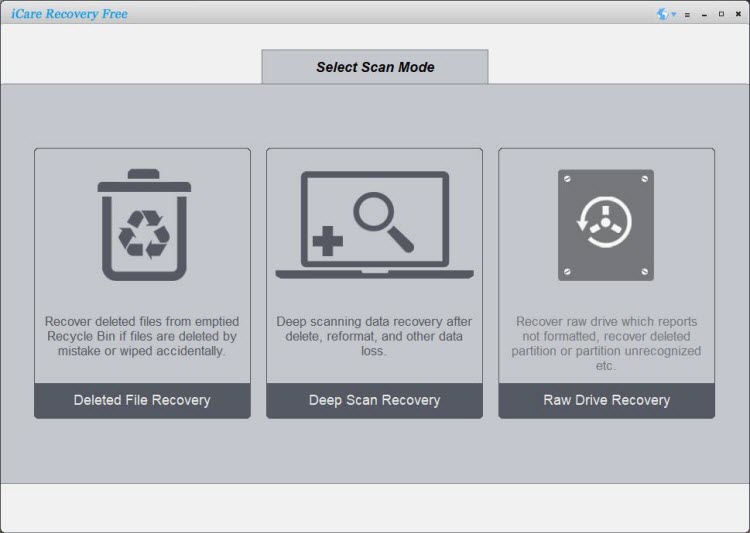
- Launch iCare Recovery Free and select Deleted File Recovery or Deep Scan.
- Scan your SD card and preview recoverable files.
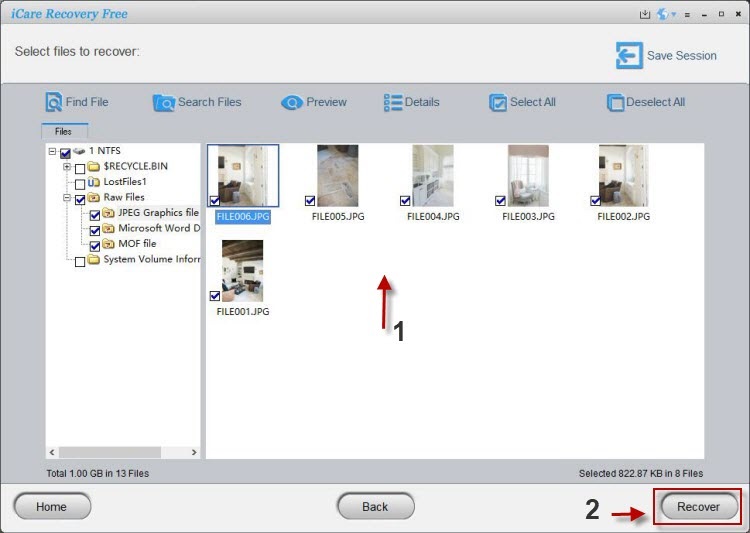
- Recover files to a different folder on your PC.
iCare Recovery Free supports most Android SD cards including SanDisk, Samsung, and Kingston.
Also read: SD card data recovery, how to unhide sd card files
Option 2: Use Android File Recovery Apps
If you prefer not to use a computer, some Android apps can attempt basic recovery directly from your phone:
- DiskDigger Photo Recovery – Works well for recovering deleted images without root access. Image recovery is free, while recovering other file types may require a paid upgrade.
- Dr.Fone Data Recovery – Commercial, Supports deeper scans but may require root privileges.
- Tenorshare UltData for Android – Commercial, Offers one-click recovery and media preview.
Steps:
- Install one of the above recovery apps from Google Play.
- Grant necessary permissions (e.g., media access).
- Select the SD card as the target storage to scan.
- Wait for the scan to finish, then preview and restore the missing files.
Tips for Successful Recovery
- Stop using the SD card immediately after data loss to prevent overwriting deleted files.
- Always recover files to a different drive or folder, not the same SD card.
- After recovery, back up your media to cloud storage (Google Photos, OneDrive, Dropbox) to avoid future loss.
Note: If your SD card is physically damaged or unreadable, you may need help from a professional data recovery service.
Tips to Prevent Hidden Files on Android
- Always eject your SD card safely from the device.
- Scan for viruses using a trusted mobile or PC antivirus.
- Backup important photos to cloud storage regularly.
- Avoid third-party apps that may hide or encrypt files automatically.
FAQ
How do I unhide files on my SD card Android?
Use your file manager settings to enable Show hidden files, or check the Gallery/Secure Folder. If files are still missing, use recovery software like iCare Recovery Free on Windows.
Can hidden files be recovered if they are deleted?
Yes. If files are deleted, they are recoverable with recovery software such as iCare Recovery Free. Avoid writing new files to the SD card to prevent overwriting lost data.
Is iCare Recovery Free safe for my SD card?
Yes. iCare Recovery Free is read-only and does not modify the SD card while scanning. Always download it from the official iCare Recovery site.
Conclusion
Hidden files on Android SD cards can usually be revealed with the built-in file manager, Gallery, or by connecting to a computer. If files remain missing or deleted, iCare Recovery Free (Windows) offers a safe way to recover your precious photos, videos, and documents. Remember to backup your SD card regularly and safely eject it to avoid hidden file issues in the future.