Fix SD Card Files Missing but Space Used — Recover Hidden Files
Have you noticed that your SD card shows used space but no files appear? This is a common issue caused by hidden files, corruption, or malware. In this guide, you’ll learn how to fix SD card files missing but space used and safely recover hidden or lost files using iCare Recovery Free (Windows).
Why SD Card Files Disappear but Space Remains Used
Files may appear missing while the SD card shows occupied space for several reasons:
- Hidden attributes: Files may be hidden due to system settings or malware.
- Corrupted file system: Improper ejection or errors can make files invisible.
- Shortcut virus: Malware hides original files and creates shortcuts.
- Accidental deletion: Deleted files may not be permanently removed and occupy space.
Identifying the cause helps you choose the right fix.
Step 1: Show Hidden Files
Before assuming files are lost, check if they are hidden:
- On Windows: Open File Explorer, select the SD card, go to the View tab, and enable Hidden items.
- On Mac: Use Command + Shift + . in Finder to show hidden files.
- On Android: Enable Show hidden files in your file manager app.
Step 2: Scan for Malware
Viruses can hide files or create shortcuts. Scan your SD card using a trusted antivirus program. Once malware is removed, hidden files may reappear.
Step 3: Use Command Prompt on Windows
If files are still missing:
- Press Windows + R and type cmd to open Command Prompt.
- Type the following (replace E: with your SD card drive letter):
attrib -h -r -s /s /d E:\*.*
This removes hidden, read-only, and system attributes recursively.
Step 4: Recover Files with iCare Recovery Free
If the SD card remains empty, recovery software can help. iCare Recovery Free (Windows) is a reliable tool for recovering hidden or deleted files.
 Download and install iCare Recovery Free on your Windows PC (not on the SD card).
- Insert the SD card using a card reader.
- Launch iCare Recovery Free and select the SD card drive.
- Choose Deleted File Recovery or Deep Scan.
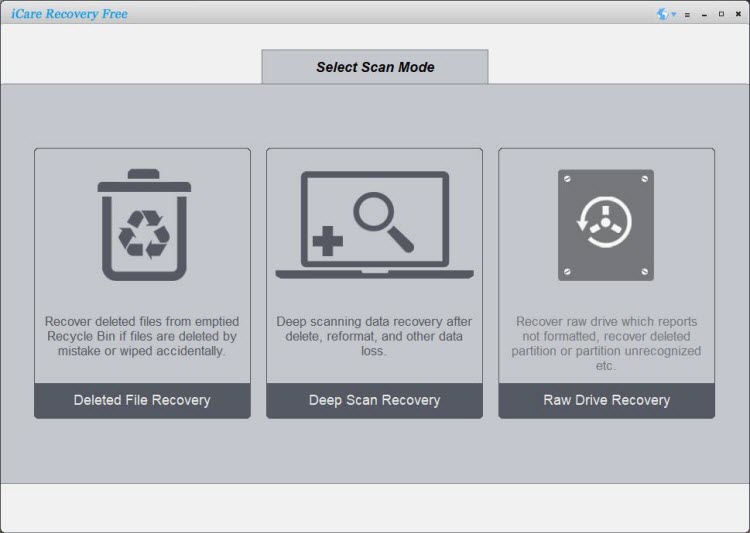
- Preview recoverable files and restore them to your computer.
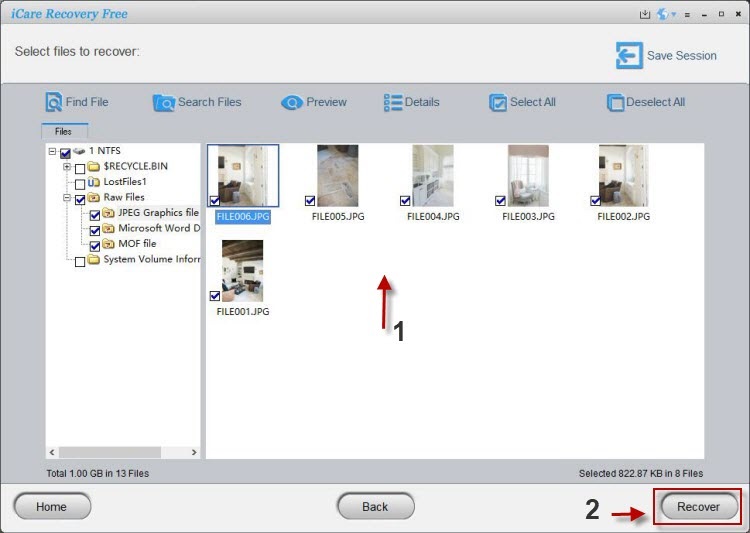
This tool supports photos, videos, and documents on SD cards from SanDisk, Samsung, Kingston, and more.
Also read: SD card data recovery, how to unhide sd card files
Step 5: Format the SD Card if Necessary
If the card is corrupted and files are recovered, format the SD card to restore its full capacity:
- Right-click the SD card in File Explorer (Windows) → Format.
- Choose FAT32 or exFAT file system.
- Click Start to complete formatting.
Always backup your data before formatting.
Tips to Prevent Future Hidden File Issues
- Always eject SD cards safely from devices.
- Use antivirus software regularly.
- Back up important files to cloud or external storage.
- Do not interrupt file transfers or remove the SD card suddenly.
FAQ
Why does my SD card show used space but no files?
Files may be hidden, deleted but not cleared, or the SD card may be corrupted or infected with malware.
How can I recover these files?
Use iCare Recovery Free to scan and recover hidden or deleted files safely.
Can I fix the SD card without losing data?
Yes. Always recover your files first using iCare Recovery Free before formatting the SD card.
Conclusion
SD card files disappearing while space remains used can be frustrating. By showing hidden files, scanning for malware, and using iCare Recovery Free (Windows), you can recover your lost data safely. Regular backups and proper card handling will prevent future issues.