Show Hidden Files on SD Card Windows 10/11 — Unhide Files Easily
If your SD card appears empty in Windows 10 or 11, but the storage space shows used, your files may be hidden. In this guide, we will show you how to show hidden files on SD cards in Windows and recover lost files using iCare Recovery Free (Windows).
Why SD Card Files Become Hidden on Windows
Hidden files on SD cards often occur due to:
- Accidental hide: Files or folders marked as hidden manually.
- Virus or malware: Viruses can change file attributes to hide them.
- Corrupted file system: Improper removal or sudden shutdowns may cause files to disappear.
- Shortcut virus: A common malware hides original files and creates shortcut copies.
Before attempting recovery, always try Windows’ built-in methods.
Method 1: Show Hidden Files via File Explorer
- Insert your SD card into a Windows PC using a card reader.
- Open File Explorer and navigate to your SD card drive.
- Click on the View tab.
- Check the box labeled Hidden items.
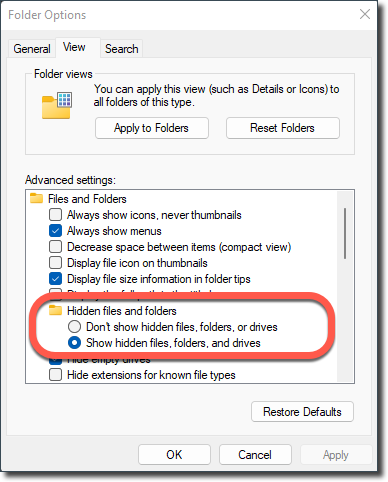
- Hidden files and folders should now appear immediately.
Method 2: Use Command Prompt to Unhide Files
If your files are still missing after recovery attempts, they may simply be hidden due to corrupted file attributes or malware activity. You can use the Windows Command Prompt to restore their visibility by resetting file attributes.
- Press Windows + R, type cmd, and press Enter to open the Command Prompt.
- Type the following command, replacing E: with the actual drive letter of your SD card:
attrib -h -r -s /s /d E:\*.*
This command works by modifying the metadata attributes stored in the file system (FAT32, exFAT, or NTFS) that determine how files behave and whether they are visible in File Explorer.
- -h removes the Hidden attribute, making hidden files visible again.
- -r removes the Read-only attribute, allowing you to edit or delete files if necessary.
- -s removes the System attribute, which prevents the file from being treated as a protected system file.
- /s applies the command recursively to all subdirectories within the drive.
- /d includes folders (directories) as well as files in the operation.
When executed, Windows will traverse the entire SD card, updating the file attribute table for each file and folder. This is especially useful if files were hidden by a virus or by accidental attribute changes, since the attrib command directly interacts with the file system’s attribute bits instead of relying on File Explorer settings.
After the process completes, open your SD card in File Explorer and check if the missing files are now visible. If they still do not appear, it could indicate deeper file system corruption or data deletion that requires specialized recovery tools like iCare Recovery Free, TestDisk or PhotoRec.
Technical Note: How Windows File Attributes Work
Each file in Windows has a set of binary flags in its metadata that define how the operating system treats it. These attributes are stored in the file system itself—either in the File Allocation Table (FAT) or the Master File Table (MFT) for NTFS volumes. Common attribute bits include:
- H (Hidden) — Marks a file as invisible to standard directory listings in File Explorer unless “Show hidden files” is enabled.
- S (System) — Identifies critical operating system files that should normally not be modified or deleted.
- R (Read-only) — Prevents changes to file content unless the attribute is cleared.
- A (Archive) — Used by backup utilities to identify files that have changed since the last backup.
When a virus or malfunctioning software hides your files, it often does so by toggling the Hidden and System bits. The attrib command reverses these flags at the file system level, restoring normal visibility and access permissions without altering the actual data content of the files.
Understanding these attributes is helpful for diagnosing visibility and access issues, especially on removable drives where file system metadata can easily become corrupted.
Method 3: Check for Malware
Some viruses hide files on SD cards. Run a trusted antivirus scan on your SD card to detect malware. After cleaning, repeat the steps above to reveal hidden files.
Method 4: Recover Hidden or Lost SD Card Files Using iCare Recovery Free
If your files still do not appear or were accidentally deleted/formatted, or when SD card turns RAW, iCare Recovery Free is a safe tool to restore them:
 Download and install iCare Recovery Free on your Windows PC (avoid installing on the SD card itself).
- Insert your SD card into the computer using a card reader.
- Open iCare Recovery Free and select your SD card drive.
- Choose Deleted File Recovery or Deep Scan.
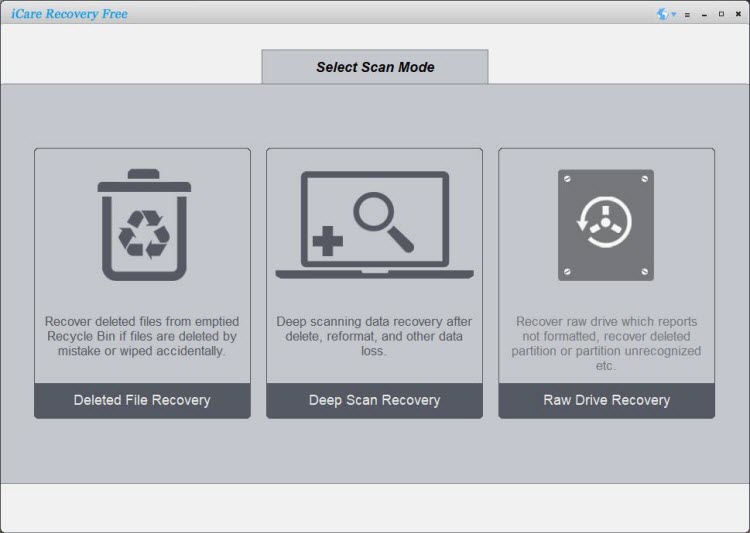
- Scan the card and preview recoverable files.
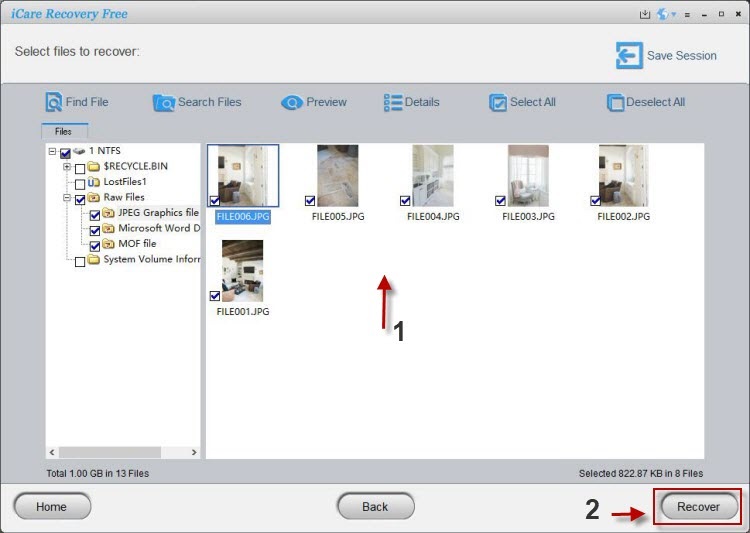
- Recover files to a safe folder on your computer.
iCare Recovery Free supports multiple file types including photos, videos, and documents, making it an ideal solution for hidden or lost files.
Also read: SD card data recovery, how to unhide sd card files
Tips to Avoid Hidden File Issues in Windows
- Always safely eject your SD card from Windows.
- Regularly scan for viruses and malware.
- Do not mark files as hidden unless necessary.
- Backup important SD card data to cloud storage.
FAQ
Why are my SD card files hidden in Windows?
Files may be hidden manually, by malware, or due to corruption. Using the File Explorer view option or CMD command usually reveals them.
Can I recover files if they were deleted from the SD card?
Yes. iCare Recovery Free can safely recover deleted or hidden files from SD cards.
Is iCare Recovery Free safe to use?
Yes. It is a read-only tool that doesn’t modify the SD card and is safe to use for recovering lost or hidden files.
Conclusion
Windows 10 and 11 provide easy ways to reveal hidden SD card files, but in cases of corruption or deletion, iCare Recovery Free (Windows) ensures your files are recovered safely. Always back up your data and use antivirus protection to prevent hidden file issues in the future.