How to Show Hidden Files on SD Card (Android, Windows, Mac)
Have you ever inserted your SD card and noticed that some folders or photos are missing, even though the storage space is still used? Don’t worry — your files may just be hidden. In this guide, you’ll learn how to show hidden files on an SD card using simple steps across Android, Windows, and Mac devices. Plus, we’ll share recovery tips using iCare Recovery Free (Windows) if your files don’t reappear.
Why SD Card Files Become Hidden
Hidden SD card files can happen for several reasons. Understanding these causes helps you decide the right fix:
- Accidental hide or system setting: Your operating system or camera might automatically hide system folders.
- Virus or malware infection: Some viruses modify file attributes to make them invisible.
- Corrupted file system: Improper removal or formatting errors can cause file table damage.
- Shortcut virus: Files are replaced with shortcut links while originals remain hidden.
Whatever the cause, your files usually still exist on the SD card. Let’s see how to reveal them.
Show Hidden Files on SD Card — Android
Most Android phones and tablets let you unhide SD card files directly through the file manager:
- Insert your SD card into your Android device.
- Open the Files or My Files app.
- Tap the three-dot menu and select Settings.
- Enable the option Show hidden files.
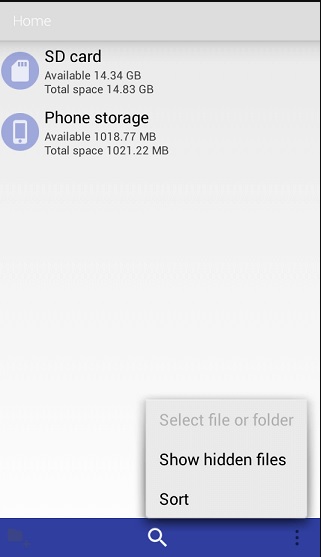
- Go back and browse your SD card — hidden folders should now appear.
If files are still missing, check your Gallery app. Tap Albums → Hidden or Secure Folder. Some Android phones automatically store hidden images there.
Show Hidden Files on SD Card — Windows 10/11
Method 1: Using File Explorer
- Connect your SD card to your PC via a card reader.
- Open File Explorer and select your SD card drive.
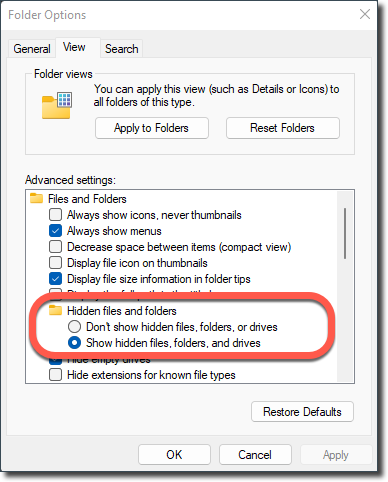
- Click the View tab on the top menu.
- Check Hidden items — this immediately displays hidden files.
Method 2: Remove hidden attribute from SD card files using CMD
If your files are still missing, use CMD to unhide them manually:
- Press Windows + R, type cmd, and hit Enter.
- Type the command below (replace E: with your SD card drive letter):
attrib -h -r -s /s /d E:\*.*Explanation of the command:
-h: Removes the hidden attribute.-r: Removes the read-only attribute.-s: Removes the system file attribute./s: Applies changes to all files in all subdirectories./d: Applies changes to directories as well as files.
After running this command, all hidden, read-only, or system files on your SD card will become visible.
Method 3: Remove hidden attribute from SD card files using software
If you prefer a GUI tool, you can use IM-Magic Partition Resizer to remove hidden attributes:
- Download and install IM-Magic Partition Resizer.
- Insert your SD card and open the software.
- Identify your SD card’s partition (e.g., “Partition 2” on Disk 1).
- Right-click the partition and select Clear Read-only Attribute.
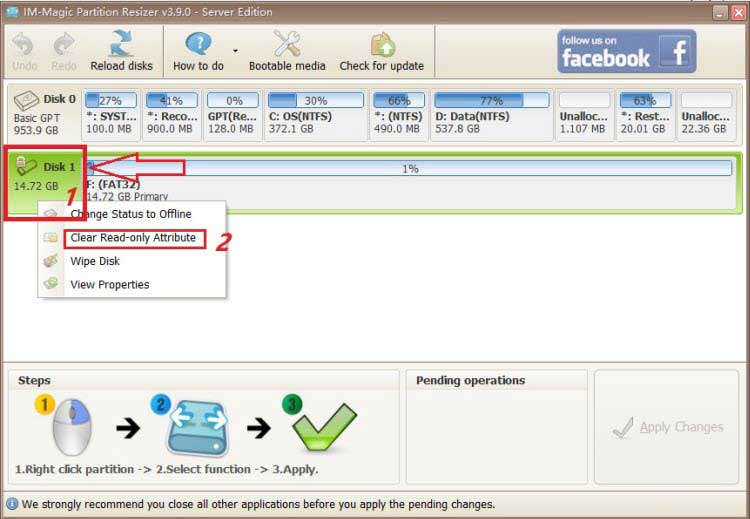
- Uncheck Read-only, and click OK, then click Apply.
- After completion, safely eject your SD card; your files should now be visible.
View Hidden Files on SD Card — Mac
On macOS, you can easily reveal hidden files through Finder or Terminal:
Using Finder
- Open Finder and navigate to your SD card.
- Press Command + Shift + . (dot) to toggle hidden files on/off.
Using Terminal
- Open Terminal and type:
defaults write com.apple.finder AppleShowAllFiles YES - Then restart Finder using:
killall Finder
You’ll now see hidden files and folders in your SD card directory.
When Hidden Files Still Don’t Show Up
If you’ve tried the above methods and your files still don’t appear, the SD card might have corruption or malware issues. In this case, data recovery software can help you extract hidden or deleted files safely.
Recover Hidden Files Using iCare Recovery Free (Windows)
iCare Recovery Free is a free Windows recovery tool that helps you recover hidden, deleted, or lost photos, videos, and documents from SD cards, USB drives, and other storage devices.
Steps:
 Download and install iCare Recovery Free on your PC (not on the SD card).
- Connect the SD card to your computer via card reader.
- Launch iCare Recovery Free and select the SD card drive.
- Run a Deep Scan to locate hidden or lost files.
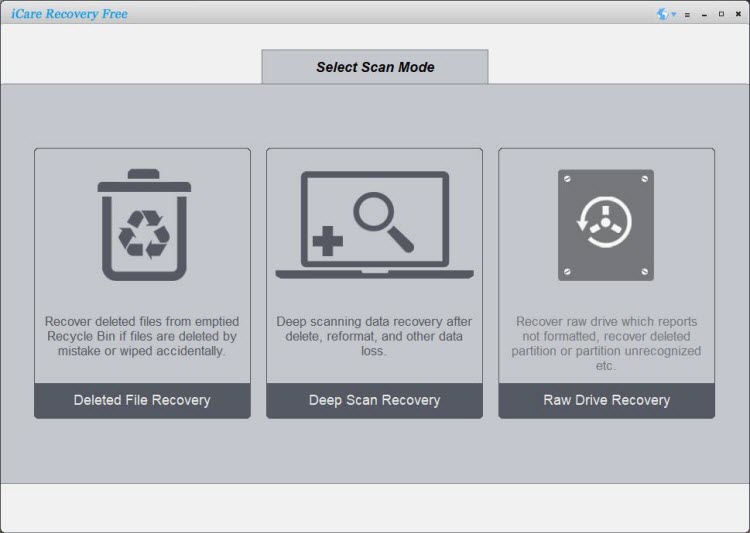
- Preview and save the recovered files to a safe folder on your PC.
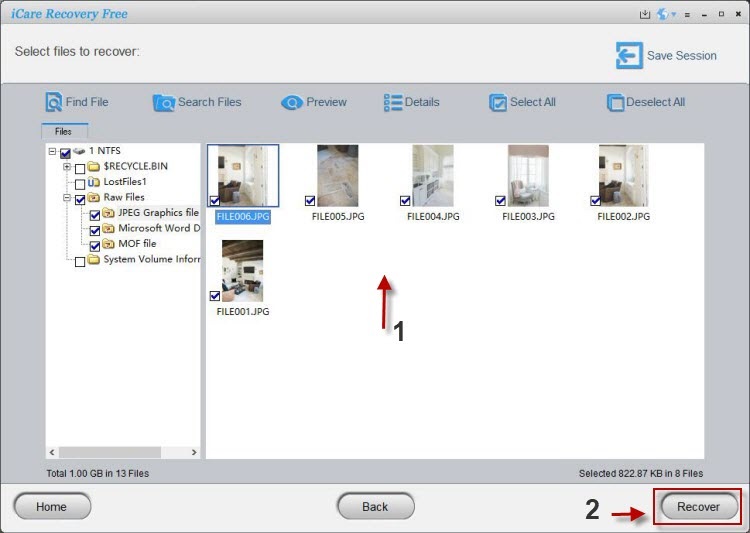
This method is 100% read-only and won’t damage your SD card data. iCare Recovery Free supports all major SD card brands, including SanDisk, Samsung, and Kingston.
Also read: SD card data recovery, how to view hidden files on Android phone
SD Card Files Not Hidden But Removed
In some cases, SD card files are not hidden but actually deleted or permanently removed due to formatting, overwriting, or corruption. When this happens, recovery methods differ from unhide solutions. Learn more about these deletion scenarios and recovery chances in our detailed guide on SD card files not hidden but deleted.
Tips to Prevent Hidden File Issues
- Always eject SD cards safely from devices.
- Keep your SD card virus-free by scanning regularly.
- Avoid editing file attributes manually unless necessary.
- Back up your important photos or videos to cloud storage.
FAQ
Why are my SD card files hidden?
Files can become hidden due to system settings, viruses, or corrupted directories. They’re often recoverable using the methods above.
Can I recover hidden files without software?
Sometimes yes — if files are only hidden, you can reveal them manually. But if they’re deleted or corrupted, recovery software like iCare Recovery Free is recommended.
Is iCare Recovery Free safe to use?
Yes. It’s a trusted recovery tool that works in read-only mode and doesn’t modify the SD card data. Always download it from the official iCare Recovery website.
Conclusion
Hidden SD card files can be frustrating, but in most cases, they’re not lost forever. By following these Android, Windows, and Mac methods, you can easily show hidden files on your SD card. And if your files still don’t appear, iCare Recovery Free (Windows) offers a reliable, safe way to bring them back. Remember to always back up and safely eject your card to prevent future issues.