SD Card Files Not Hidden but Deleted — Causes & Recovery (iCare Recovery Free)
When files disappear from an SD card, the first hope is that they're merely hidden. But in many cases the files have been permanently removed from the file system — not hidden — and require recovery. This article explains the main scenarios where files are truly deleted, the realistic chances of recovery, and practical steps to recover data safely using tools such as iCare Recovery Free (Windows).
Also read: How to view hidden files on SD card
What "deleted" really means on an SD card
Most file systems (FAT32, exFAT) do not immediately erase file data when you delete something. Instead, they remove directory entries and mark the storage space as available. The raw bits often remain until the card is overwritten. That distinction matters: deleted files can often be recovered, but once overwritten or physically destroyed, they are effectively gone.
Common cases where files are permanently removed
1. Quick/Full format and secure overwrite
A quick format usually rebuilds the file system table and can leave much of the data intact — recoverable with a deep scan. A full format still has chances for a sucessful recovery, however if the format involves secure overwrite, writes zeros or random data to all sectors. After a full overwrite, the chance of software recovery is extremely low to none.
Data Recovery Success Rates
| Action | Recovery Chance | Key Details |
|---|---|---|
| Quick Format | 90% - 100% |
|
| Full Format | Up to 80%+ |
|
| Full Erase / Secure Wipe | 0% |
|
A Quick Format only removes the file allocation table, marking the SD card as empty and available for new data. The actual files remain and can often be recovered until they are overwritten.
A Full Format, however, also performs a thorough scan for bad sectors. If it finds damaged areas, it marks them as "bad blocks" and prevents the system from writing to them. This process of writing these new markers can overwrite the original data in those specific sectors, permanently damaging any files that were stored there.
2. Overwriting by new data
When new photos, videos, or files are saved to the SD card, they may overwrite sectors containing previously deleted data. Overwrite is the most common reason deleted files become unrecoverable. The more the card is used after deletion, the lower the recovery chance.
3. File system corruption beyond repair
Severe corruption — caused by interrupted writes, faulty controllers, or repeated errors — can destroy directory structures and file metadata. While carving tools can sometimes recover file fragments, full reconstruction may be impossible if critical metadata is lost.
4. Physical damage and bad NAND cells
Physical failure of the SD card (damaged controller, delaminated PCB, worn-out NAND cells) can render data unreadable. In these cases, software won’t help; specialized chip-off recovery may be needed and success depends on the extent of hardware damage.
5. Counterfeit or defective cards
Fake cards advertise larger capacity than they actually have. They overwrite old sectors once the real capacity is exceeded, causing data loss. Defective cards can exhibit similar symptoms: files appear to save but are immediately lost or corrupted.
6. Malware that deletes or encrypts files
Certain malware not only hides files but actively deletes or encrypts them. In encrypting ransomware scenarios, data may remain on the card but is unreadable without the decryption key. Deletion by malware removes file table entries and may also corrupt file content.
7. Partition table loss or accidental repartitioning
Accidentally reformatting or repartitioning an SD card can remove the partition table, making data inaccessible. If the actual sectors are not overwritten, partition recovery can restore access; if overwritten, recovery is unlikely.
Summary of SD Card File Removal Cases and Recovery Chances
| Cause of File Loss | Type of Removal | Typical Recovery Chance | Recommended Action |
|---|---|---|---|
| Accidental deletion | Logical removal | High | Use iCare Recovery Free → Deleted File Recovery |
| Quick format | File system reset | High to Medium | Use iCare Recovery Free → Deep Scan mode |
| Full format / overwrite | Sector marked as damaged, or data physically erased | High to Medium or Low to None | Full format, use iCare Recovery Free Deep Scan mode, while full format with overwrite, use Professional lab recovery only |
| File system corruption | Metadata damaged | Medium | iCare Recovery Free → Deep Scan mode |
| Physical damage (bad sectors) | Hardware failure | Low | Professional data recovery service |
| Malware deletion / encryption | Intentional removal or alteration | Medium | Run antivirus, then iCare Recovery Free for recovery |
| Partition table loss | Logical partition missing | High | iCare Recovery Free → RAW DRIVE RECOVERY |
| Counterfeit or defective card | Overwritten storage area | Low | Replace card; attempt partial recovery |
| Overwritten by new data | Physical overwrite | Very Low | Stop using card immediately; recovery may be partial |
How recoverable are deleted SD card files?
Recovery probability depends on cause and timing. Stopping use immediately after loss and scanning with iCare Recovery Free maximizes success.
Step-by-step recovery workflow (safe approach)
Step 1 — Stop using the SD card
Immediately cease all writes. Do not take more photos, save files, or format the card further. Every write can permanently overwrite recoverable data.
Step 2 — Use a card reader and work from a PC
Remove the SD card from the camera/phone and connect it to a computer using a reliable card reader. Working from a PC gives you better tools and a safer environment for recovery.
Step 3 — First try: iCare Recovery Free (Windows)
iCare Recovery Free is an easy-to-use Windows tool that should be your first software attempt for deleted SD card files. It supports Deleted File Recovery, Formatted Drive Recovery, Lost Partition Recovery, and Deep Scan modes.
 Download and install iCare Recovery Free on your computer — never on the SD card.
- Select the SD card or disk image and run a Deep Scan if a quick scan finds nothing.
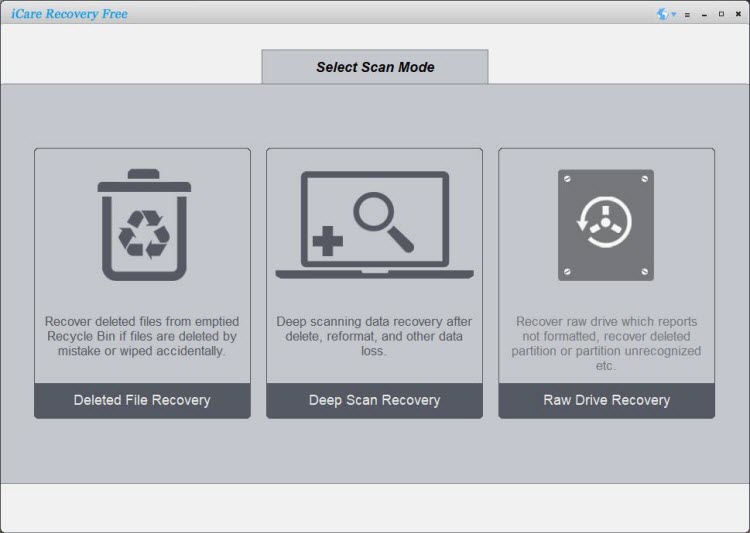
- Preview recoverable files and restore them to a different drive.
Step 4 — Escalate to professional recovery for hardware failures
If the SD card shows signs of physical damage, clicking noises, unreadable controller, or the PC cannot detect it, stop further attempts and consult a professional data recovery service. These services can perform chip-off recovery or use specialized readers, but they are more expensive and success is not guaranteed.
Also read: SD card online recovery
Preventive best practices
- Back up regularly: Use cloud or multiple physical backups for important photos and files.
- Test new cards: Verify capacity with tools like H2testw before use.
- Safely eject: Always eject SD cards before removing them from devices.
- Avoid counterfeit purchases: Buy cards from trusted retailers and brands.
Conclusion
Knowing when SD card files are truly deleted — not merely hidden — determines whether manual fixes will help. Quick, informed action maximizes your chance of recovery: stop using the card, scan with iCare Recovery Free (Windows), and escalate to professionals only when hardware damage is suspected. With the right steps, even deleted SD card data can often be brought back.