Recover Hidden Files from SD Card Without Software
SD card files can sometimes disappear or appear hidden due to system settings, malware, or corruption. You might be wondering how to recover hidden files from an SD card without software. This guide explains manual methods across devices and introduces iCare Recovery Free (Windows) for safe and reliable recovery.
Why Files Become Hidden on an SD Card
Understanding the reason behind hidden files helps determine the best recovery method:
- System settings: Files may be automatically hidden by Android, Windows, or Mac.
- Virus or malware: Malicious software can hide or modify file attributes.
- Corruption: Improper removal or sudden ejection can hide or corrupt files.
- Accidental hide: Users might have marked files or folders as hidden.
Part#1 - Manual Methods to Recover Hidden SD Card Files (Without Software)
Method 1: Show Hidden Files in File Explorer (Windows)
- Connect the SD card to a Windows PC.
- Open File Explorer and select the SD card drive.
- Click View → check Hidden items.
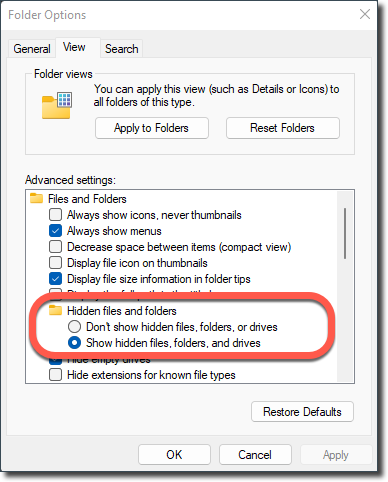
Method 2: Use Command Prompt (Windows)
- Press Windows + R, type cmd, and press Enter.
- Type the following command (replace E: with your SD card drive letter):
attrib -h -r -s /s /d E:\*.*
This removes hidden, read-only, and system attributes recursively.
Details: How to view hidden files on sd card Windows
Method 3: Show Hidden Files on Android
- Open your File Manager app.
- Tap the menu → Settings → enable Show hidden files.
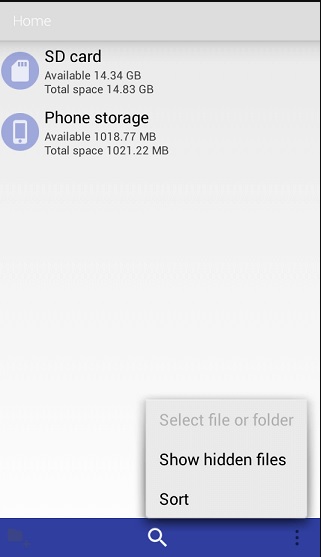
- Browse the SD card to view hidden files.
Details: How to view hidden files on sd card Android
Method 4: Reveal Hidden Files on Mac
- Open Finder and press Command + Shift + . to toggle hidden files.
- Alternatively, use Terminal with
defaults write com.apple.finder AppleShowAllFiles YESand restart Finder.
Details: How to view hidden files on sd card MAC
When Manual Methods Are Not Enough
Sometimes, files are hidden due to corruption or deletion and cannot be recovered manually. In this case, software recovery is the safest solution. iCare Recovery Free is a trusted, free tool for Windows that can scan SD cards and recover hidden, deleted, or lost files without risk of overwriting data.
Recover Files Using iCare Recovery Free
Steps to recover SD card files:
- Remove the SD card from your device and insert it into a Windows PC with a card reader.
 Download and install iCare Recovery Free on your PC (do not install on the SD card).
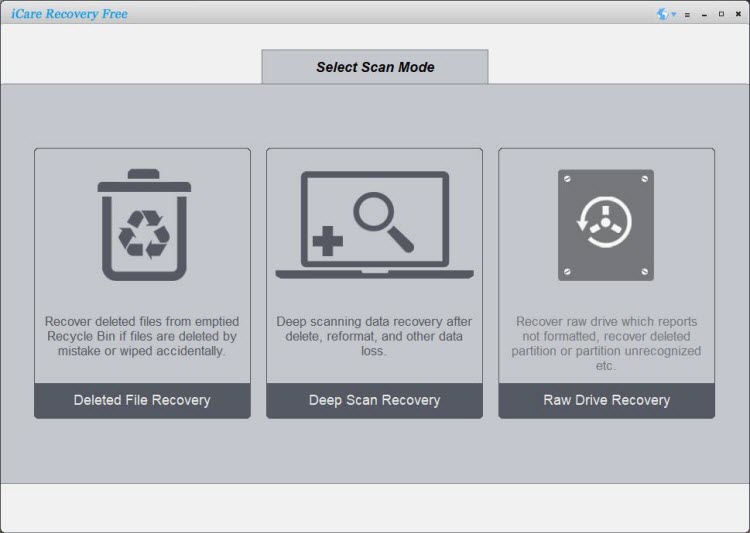
- Launch the program and select your SD card drive.
- Choose Deleted File Recovery or Deep Scan to find hidden or lost files.
- Preview and select the files you want to recover.
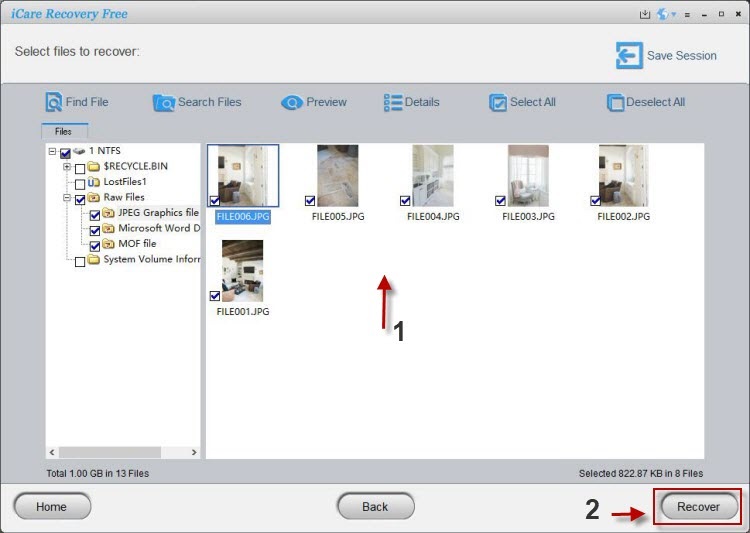
- Save recovered files to a folder on your PC.
iCare Recovery Free works with all major SD card brands, including SanDisk, Samsung, and Kingston.
Also read: SD card data recovery, how to unhide sd card files
Tips to Prevent Hidden File Issues
- Always safely eject SD cards from your device.
- Scan SD cards for viruses regularly.
- Back up important files to cloud storage.
- Avoid sudden removal during file transfer.
FAQ
Can I recover hidden files without software?
Yes, if the files are simply hidden, you can unhide them manually using the device’s file manager or OS tools. If files are deleted or corrupted, recovery software like iCare Recovery Free is necessary.
Is iCare Recovery Free safe?
Yes. It is read-only and does not alter the SD card data. Always download from the official iCare Recovery website.
Which files can iCare Recovery Free recover?
It can recover photos, videos, audio, documents, and other file types from SD cards, USB drives, and other storage devices.
Conclusion
Recovering hidden SD card files without software is possible if the files are only hidden. For lost or corrupted files, iCare Recovery Free (Windows) provides a safe and free solution. Regular backups, safe ejection, and antivirus protection help prevent hidden file problems in the future.