SD Card Not Showing Files – Causes & Fixes
Scenario: you insert your SD card into your computer or smartphone, you see that the SD card is recognised, but when you open it — no files. Or the SD card seems empty, yet the used space suggests data is still there.
If you’re seeing that your SD card is not showing files, you’re not alone. In this article, we’ll cover the most common cases when an SD card won’t show files, how to diagnose what’s happening, and how to fix it. We’ll also introduce how to use iCare Recovery Free (a free data recovery tool) when your files appear lost or hidden. Finally, we’ll wrap up with a helpful FAQ section.
- Why Is My SD Card Not Showing Files
- Case 1: SD Card Connectivity / Detection Issues
- Case 2: SD Card Hidden or Invisible Files
- Case 3: Write-Protection / Locked SD Card
- Case 4: Deleted or Missing Files / Accidental Format SD
- Case 5: SD Card Corrupted File System or Card Failure
- More Solutions for SD Cards Not Showing Files on Phone/Camera
- When to Replace the SD Card
- FAQ – Frequently Asked Questions
- Conclusion
Why Is My SD Card Not Showing Files?
There’s no single cause for the problem “SD card not showing files”. The root issue may be hardware, software, filesystem, hidden attributes, or even malware. Understanding which “case” you’re dealing with helps you pick the right fix. Below are the different scenarios you’re likely to encounter.
Common Cases & Fixes
Case 1: Connectivity / Detection Issues
In this scenario, your SD card may be detected by your device, but maybe not fully recognised; files may not appear because the system hasn’t mounted the correct drive letter or the card reader is flaky.
- Check card reader / slot: Make sure your SD card is inserted fully and properly. A poor connection can result in unreadable data.
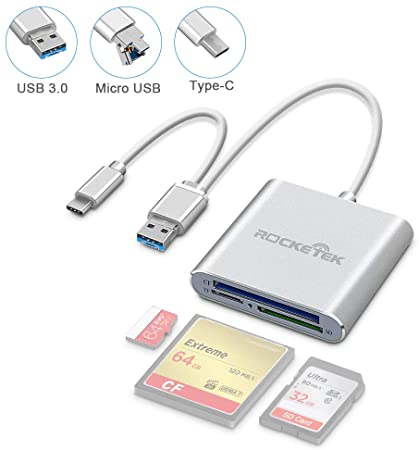
- Try a different device or port: If you’re using a laptop USB card reader, try a built-in slot or a different reader. If you’re on a smartphone, try the card in another phone.
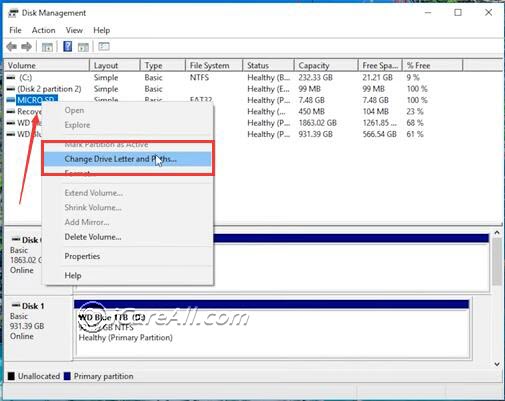
- Check drive letter assignment (Windows): On Windows, go to Disk Management. If your SD card appears but has no drive letter, assign one manually: Right-click the volume → Change Drive Letter and Paths → Add.
- Update or reinstall drivers: Sometimes the card reader driver is outdated or corrupt, causing the card to be visible but not accessible.
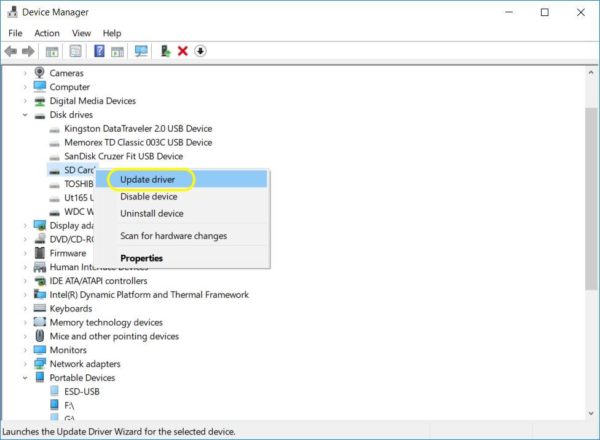
Fix summary for Case 1: Try a different card reader, reinsert the card, check Disk Management or equivalent, assign a drive letter, and update drivers.
Case 2: Hidden or Invisible Files
Your SD card is recognised, the storage used appears (e.g., your computer shows “32 GB used” on a 64 GB card) but when you open the folders there’s nothing visible. Often the files are simply hidden or marked system-hidden.
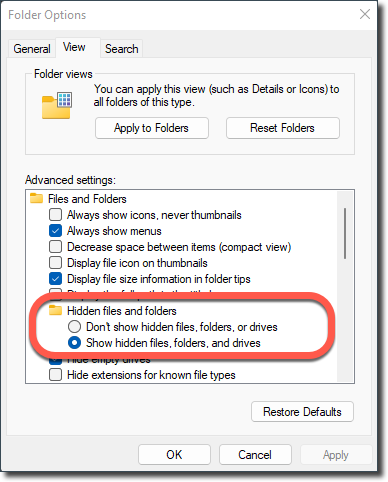
- Show hidden files (Windows): In File Explorer, go to View → Options → Change folder and search options → View tab → select “Show hidden files, folders and drives”. Then you might see previously invisible files.
- Use attrib command: Open Command Prompt as administrator and type:
attrib -h -r -s /s /d X:\*.*
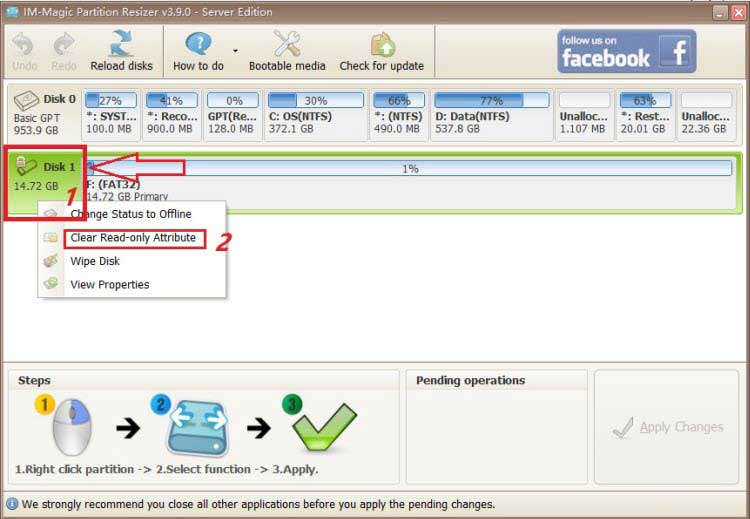
where X is the drive letter of your SD card. This removes hidden, read-only and system attributes from the files. - Use a free software with UI: Download and install IM-Magic Partition Resizer that has remove read-only attribute option for users to easily remove the attrib.
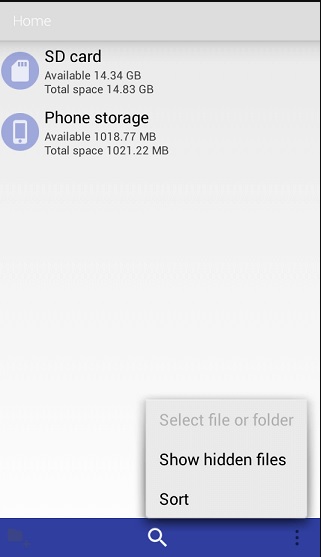
- On Android / phone devices: Sometimes the card was formatted as internal storage (adoptable storage) and the files become inaccessible on other devices. Or the phone has set the SD card files to be hidden. So this time, just enable the Show Hidden Files option in your Android phone.
Fix summary for Case 2: Enable “Show hidden files”, use the attrib command, check if the card was formatted in an unusual way, then copy files off if you find them.
Also read: How to view hidden files on SD card
Case 3: Write-Protection / Locked Card
If your SD card has a physical lock switch (many standard SD cards have this) or the file system was set to read-only, you may not be able to write to it — and in some cases your system may hide files because of drive errors related to write-protection.
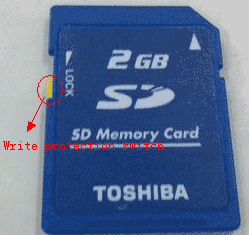
- Check the lock switch: On full-sized SD cards there’s usually a small sliding tab marked “lock/unlock”. Make sure it isn’t set to “lock”.
- Clear read-only attribute via command prompt: In Windows use Diskpart: open CMD as admin, type
diskpart, thenlist disk,select disk X, thenattributes disk clear readonly. - Use free tool IM-Magic Partition Resizer: This tool provides an easy to use UI that you can turn off the SD card write protection.
Fix summary for Case 3: Slide the physical lock to unlock, or clear read-only attributes via disk utilities like Partition Resizer, then re-insert the card and check.
Case 4: Deleted or Missing Files / Accidental Format
In this case, the SD card appears fine — it shows capacity, maybe shows some used space — but your files are gone. They may have been accidentally deleted, the card accidentally formatted, or data overwritten. If your files are important, you’ll want to act quickly and avoid writing new data to the card.
Here’s where data recovery comes into play. A good tool in this scenario is iCare Recovery Free. This free data recovery software supports SD cards and can scan for deleted or missing files, allowing you to preview and recover photos, videos, documents before attempting other fixes.
When to use iCare Recovery Free:
- If you deleted files by mistake.
- If you formatted the card and then realised the data was needed.
- If the files disappeared without apparent reason (e.g., after switching devices or mounting the card in another phone).
Steps to use iCare Recovery Free:
 Download and install iCare Recovery Free on your computer (not on the SD card itself).
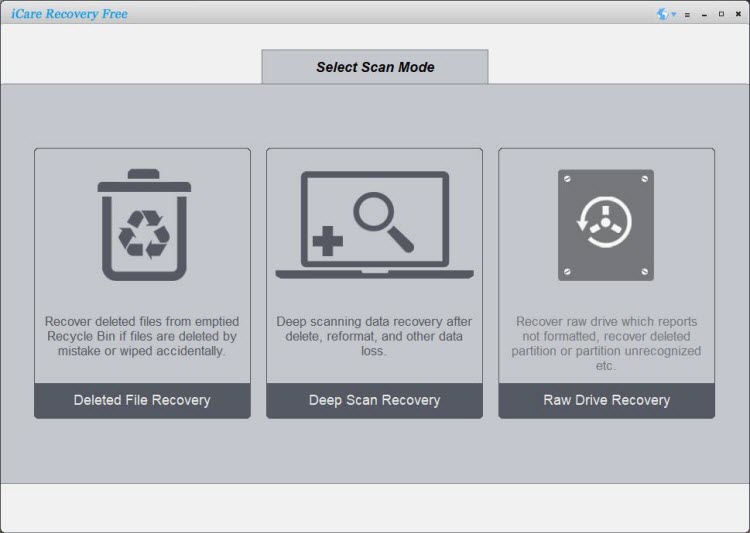
- Connect the SD card (via reader) and launch the software. Select DEEP SCAN RECOVERY.
- Select the connected SD card and let it scan for lost files.
- Preview found files and select what you want to recover. Save recovered files to a different drive (not the SD card) to avoid overwriting.
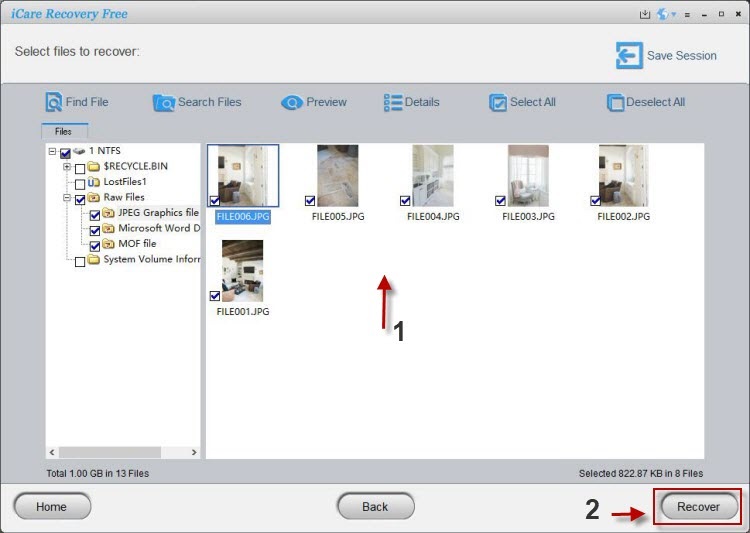
Once you have safely recovered your data, you can go ahead with other repairs (see Case 5). It’s very important not to use the card for storing new data until recovery is done — new data may overwrite the deleted files and make recovery impossible.
Case 5: Corrupted File System or Card Failure
Sometimes the SD card’s file system is damaged, corrupted, or the card itself is beginning to fail (logical or physical errors). In this scenario the files may not show up even though the storage device is detected.
Possible signs include:
- The card shows as RAW file system in Disk Management.
- The storage shows used space but files don’t appear.
- A file check (CHKDSK, Disk Utility) reports errors.
Fixes you can attempt:
- Run CHKDSK (Windows): Open Command Prompt as admin and type
chkdsk X: /f(replace X with your drive letter). This attempts to fix file system errors. - Use Disk Utility (macOS): Open Disk Utility, select the SD card, click First Aid to attempt repair.
- Back up recovered files and then format the card: If repairs don’t restore file visibility, after recovery you may choose to format the card to clear the file system issues and reuse it. Be aware formatting erases all data.
- Consider physical damage: If the SD card has been physically abused (water damage, bent, hit), or if it’s counterfeit/low quality, recovery may fail and the card may need replacing.
Fix summary for Case 5: Recover first (using iCare Recovery Free or other tool), then attempt file system repair (CHKDSK/First Aid), and only if that is unsuccessful, format or replace the card.
Step-by-Step Checklist
Here’s a quick checklist you can work through when your SD card is not showing files:
- Remove and re-insert the SD card; try a different reader/port (Case 1).
- Check if the card is recognised in Disk Management (Windows) or your OS’s equivalent. Assign drive letter if needed.
- Enable showing hidden files, use attrib command to unhide (Case 2).
- Check for physical lock switch and clear read-only attributes (Case 3).
- If files appear lost, run data recovery tool, e.g., iCare Recovery Free (Case 4).
- After recovery, run file system repair (CHKDSK or Disk Utility) (Case 5).
- If card is still unreliable or files still don’t show, format (data backed up) or replace the card.
More Solutions for SD Cards Not Showing Files on Phone/Camera
If your SD card is not showing files on a phone or camera, the issue can differ from when it’s connected to a computer. Smartphones and cameras handle SD cards differently, sometimes formatting them in proprietary file systems or encrypting them. Below are additional solutions specifically for fixing SD card visibility issues on phones and cameras.
1. Check SD Card Compatibility
Not every device supports all SD card types or capacities. For example, older cameras may not support SDXC cards larger than 32 GB, and certain Android phones may not recognise cards above a specific format (FAT32 vs exFAT).
- Check your device’s manual: Confirm the maximum supported SD card size and file system format.
- Reformat using a compatible file system: Use FAT32 for cards ≤ 32 GB and exFAT for cards ≥ 64 GB.
- Always back up or recover your data first using iCare Recovery Free before formatting.
2. Clean the SD Card and Slot
Dirt or oxidation on the contacts can prevent a proper connection, leading to the SD card being detected but files not showing.
- Turn off your phone or camera and carefully remove the SD card.
- Clean the golden contact pins gently with a dry microfiber cloth.
- Reinsert it securely and restart your device.
- If the card still isn’t read, try it in another device to confirm if the issue is with the SD card or the reader.
3. Mount or Remount the SD Card (Android)
Sometimes Android unmounts SD cards automatically after improper ejection or system errors. You can manually mount it back via settings:
- Open Settings → Storage → SD card.
- If the option Mount SD card appears, tap it.
- Wait for the system to recognise the card and refresh the gallery or file manager.
- If still empty, try restarting your phone.
4. Check for Hidden or Nomedia Files on Android
Some Android file managers may hide files due to the presence of a “.nomedia” file, which prevents media scanning. Removing this file may restore visibility.
- Connect your SD card to a computer or open a file manager app that can display hidden files.
- Look for a file named
.nomediaand delete it. - Restart the device and check if your photos or videos reappear.
5. Restore Files When the Phone or Camera Still Doesn’t Show Them
If none of the above steps work, the SD card may be partially corrupted or its file system damaged. Before formatting it, recover your lost files using iCare Recovery Free on a Windows PC.
- Remove the SD card from your phone or camera and connect it via a card reader to your computer.
- Launch iCare Recovery Free and let it scan your SD card.
- Preview and recover missing files (photos, videos, or documents).
- After recovery, reformat the card in your device to make it fully functional again.
6. Format SD Card in the Camera or Phone Itself
Once your files are safely recovered, it’s best to reformat the SD card in the same device it will be used in. This ensures the correct file system and partition structure.
- On cameras: open Menu → Settings → Format Card.
- On Android: open Settings → Storage → SD card → Format.
- Reinsert and check that new photos and videos save properly.
7. Update Device Firmware or Software
Outdated firmware in cameras or phones can sometimes cause SD card reading problems. Manufacturers often release updates to improve compatibility with newer SD card types.
- Check your camera or phone’s official website for firmware updates.
- Install any available updates and restart your device.
- Try re-inserting the SD card after updating.
8. Replace the Card Reader or Adapter
If your phone or camera uses an adapter (e.g., microSD to SD adapter), the adapter itself might be faulty. Similarly, a worn or loose card slot can prevent proper connection.
- Try another adapter or use a different card reader when connecting to a computer.
- If your device uses dual SD slots, test both to confirm hardware condition.
Tip: Before reformatting any SD card that doesn’t show files, always perform a recovery attempt first. With iCare Recovery Free, you can safely scan and restore files before any risky operation, preventing permanent data loss.
When to Replace the SD Card
If you’ve tried all the fixes above and still your SD card doesn’t show files (or shows but behaves intermittently), it may be time to replace it. Especially if:
- The card consistently shows errors.
- You see corrupted data, unexpected “used space” without visible files.
- The card is from an unknown brand or seems too good to be true (counterfeit).
- The card has physical signs of damage (cracks, bent, exposed gold contacts, water damage).
Using a failing card for important data is a risk — better to transfer all recovered files to new storage before further use.
Tips to Prevent SD Card Issues
Prevention is always better than cure. Here are some habits to reduce the chances of your SD card not showing files in the future:
- Back up your data regularly (e.g., to a cloud service, external drive).
- Avoid switching the card between very different devices (e.g., phone formatted as internal storage then camera) unless you know what you’re doing.
- Safely eject the SD card before removing it from a device or reader.
- Keep the card reader/slot clean, ensure good physical contacts.
- Avoid using very cheap or unknown-brand SD cards for critical files. Check for authentic quality.
- Use the correct formatting for your device: for example, many cameras prefer FAT32 or exFAT depending on size. Mismatched formatting may reduce compatibility.
FAQ – Frequently Asked Questions
Why does my SD card show capacity used but no files are visible?
This can happen if files are hidden (Case 2) or the file system is corrupted. Enable “Show hidden files” or recover missing data with iCare Recovery Free, then repair the card.
Can I still recover files if I formatted the SD card?
Yes — if no new data has been written. Use iCare Recovery Free to scan and recover formatted files quickly.
My phone says “SD card not supported” or “card must be formatted”. What should I do?
The card may have been formatted as internal storage on another phone and is encrypted. Reinsert it in the original device, or recover data first, then reformat as portable storage.
Will running CHKDSK or repairing the disk erase my files?
Usually not, but it’s safest to recover your data first using iCare Recovery Free before attempting CHKDSK or Disk Utility repair.
How do I choose between repairing and replacing the SD card?
If the card fails often or is physically damaged, replace it. For minor logical issues, data recovery followed by repair should work.
Is iCare Recovery Free really free, and can it recover everything?
iCare Recovery Free lets you scan and preview recoverable files at no cost. Some recovery limits may apply. No software can guarantee full recovery, especially if files are overwritten.
Conclusion
When facing an SD card not showing files issue, identify whether it’s a visibility, system, or corruption problem. Use recovery software like iCare Recovery Free to retrieve data before performing repairs or formatting. With the right approach, your files can often be restored successfully.