SanDisk SD Card Photo Recovery Software: Best Free Options & How to Recover Photos, Videos and Data
Recovering lost photos, videos, or files from a SanDisk SD card can be stressful — especially when your memories are at stake. This guide covers the top SanDisk SD card photo recovery software and focuses on the best free tools for rescuing images, video and general data. We'll introduce iCare Recovery Free, compare several other free titles, explain practical recovery steps, and answer frequently asked questions.
Why choose free SanDisk SD card photo recovery software?
Free recovery tools are a great first step because they let you:
- Test recovery possibilities without spending money.
- Quickly scan for deleted photos and videos.
- Use multiple tools to increase the chance of recovery.
Top free SanDisk SD card photo recovery software (overview)
Below are several well-known free tools that are commonly used to recover photos and videos from SanDisk SD cards. Each has strengths and limitations, so try them in the order that fits your situation.
iCare Recovery Free
iCare Recovery Free is often recommended for beginners who want a straightforward recovery process. Key points:
- Ease of use: Wizard-style interface that walks you through selecting the card and scanning for deleted files.
- File support: Recovers common photo formats (JPG, PNG, RAW variants) and many video types.
- Free tier: The free edition typically allows recovery of a limited number of files or previews recovered files — it's useful for testing whether files are recoverable before upgrading if necessary.
- When to use: Good first attempt when the card is logically healthy (readable but files deleted or formatted).
Step-by-step: How to recover photos and videos from a SanDisk SD card with iCare Recovery Free
- Stop using the card immediately to minimize overwriting.
 Download and install iCare Recovery Free on your computer (not on the SD card itself).
- Connect the card to your computer using a reliable card reader (avoid the camera connection when possible).
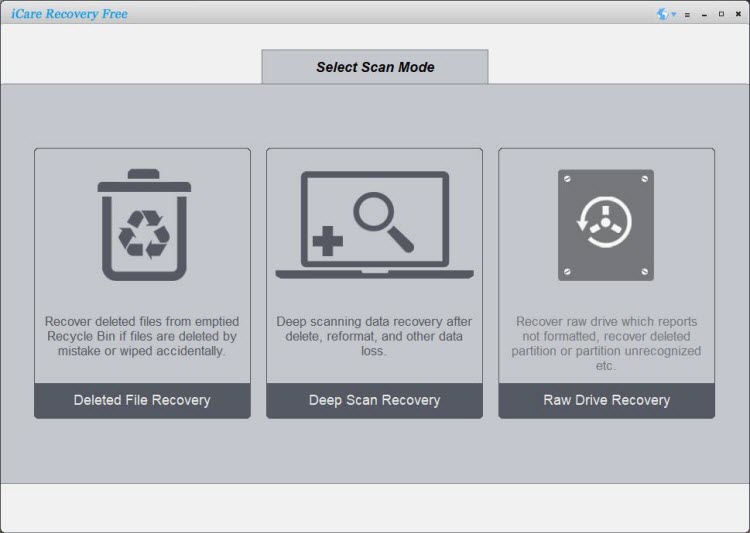
- Run the free recovery tool perform a deep scan.
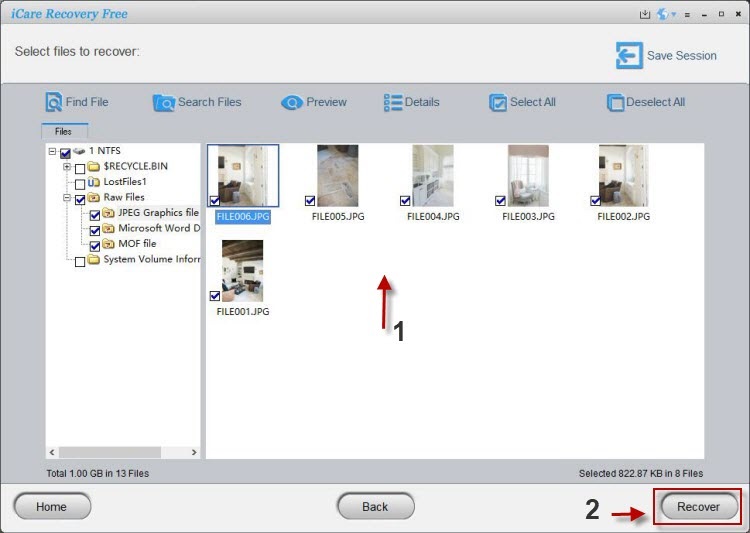
- Preview recovered files if the software supports previews; save recovered files to a separate drive.
Note: Consider professional recovery if the card is physically damaged or if you cannot recover critical files with software.
Also read: SD card online recovery free possible? or SD card format recovery
Other recovery tools? Here are some free tools
PhotoRec (by CGSecurity)
PhotoRec is an open-source, powerful recovery tool that ignores the file system and searches for file signatures — especially effective when the file system is damaged or the card has been formatted. Pros: Free, supports many file types and platforms. Cons: Text-based interface can be intimidating; recovered files may lose original filenames and folder structure.
Recuva (by Piriform)
Recuva is a user-friendly recovery application suited for Windows users. It offers both a free and a paid version. Pros: Simple interface and quick-scans for photos. Cons: Deep recovery may require the paid edition.
DiskDigger
DiskDigger is available as a small utility that recovers photos and videos quickly. It has a free mode that recovers many common file types and a paid/pro version for more advanced needs.
TestDisk (paired with PhotoRec)
TestDisk is intended for partition-level recovery and can repair damaged partition tables. It’s a powerful companion when the SD card's partition is corrupted and files are inaccessible.
Other commercial titles to consider (Limited free, commercial upgrade required)
- EaseUS Data Recovery Wizard Free — easy to use, limited free quota but good for smaller recoveries.
- MiniTool Power Data Recovery Free — helpful GUI and decent file-type support with a limited recovery quota.
- Stellar Data Recovery Free — supports photo and video recovery with a free limit; professional-grade paid upgrades exist.
SanDisk SD card video recovery software — what to watch out for
Video recovery is different from photo recovery because video files are usually large and may be fragmented across the card. Key considerations:
- File size and fragmentation: Large videos are more vulnerable to partial overwrites which can make them unplayable after recovery.
- Format support: Make sure the recovery tool supports your camera or device’s video formats (e.g., MP4, MOV, AVCHD, 4K formats).
- Deep scan: Use deep or signature-based scans (PhotoRec does this) if a quick scan fails to find videos.
SanDisk SD card data recovery software — full data recovery approach
If you need more than photos or videos — for example, documents, archives or mixed file types — use a general-purpose data recovery tool. Recommended approach:
- Create an image (if possible) of the SD card before attempting many recovery passes — this prevents accidental writes to the original device.
- Run a read-only scan in your chosen recovery software and save recoverable files to a different drive (never to the same SD card).
- Try multiple tools (e.g., iCare Recovery Free, PhotoRec, Recuva) because each uses different techniques and may find different files.
Quick comparison: Which free tool should you try first?
- Beginner, readable card, deleted files: iCare Recovery Free or Recuva.
- Formatted card or corrupted file system: PhotoRec (signature-based) and TestDisk (partition repair).
- Simple photo-only recovery: DiskDigger or Recuva.
- Large video recovery: Try PhotoRec first for signature scanning; then specialized paid options if necessary.
Safety tips and best practices
- Do not format the card if you want to recover files — formatting reduces recovery chances.
- Avoid writing new files to the SD card after noticing data loss.
- Work from a copy: If possible, create a full image of the card and run recovery against the image.
- Use reliable storage to save recovered files (external drive or internal disk) — never the same SD card.
Frequently Asked Questions (FAQ)
Q: Will free software always recover my photos?
A: No. Free tools can recover many deleted files, but success depends on how much the card has been used since deletion, file fragmentation, and whether sectors containing the files have been overwritten.
Q: My SanDisk SD card is not recognized — can software help?
A: If the card is recognized by the operating system but the file system is damaged, recovery software can often read raw data. If the card is not recognized at all (hardware failure), professional recovery may be required.
Q: Are recovered photos guaranteed to be intact?
A: Not guaranteed. Recovered files can be corrupted or partially overwritten. Always check previews or recovered files for integrity before deleting the originals.
Q: How do I avoid losing photos from my SanDisk SD card in the future?
A: Back up regularly — use automatic backups, cloud sync, or copy photos to a computer after shoots. Replace cards that show errors or wear.
Final thoughts
When searching for SanDisk SD card photo recovery software, start with safe, reputable free tools like iCare Recovery Free, PhotoRec, Recuva, DiskDigger and others listed above. Try one tool at a time, avoid writing to the card, and save recovered files to a different drive. If your card is physically damaged or the data is extremely valuable, consult a professional data recovery service.