SD card photo recovery without software — How to recover photos (and free tools if you need them)
Short answer: sometimes yes — you can recover photos without installing recovery software, but the options are limited and depend on where the photos exist now (backups, hidden files, camera memory). If the files were truly deleted or the card was formatted, free recovery software like iCare Recovery Free, PhotoRec or Recuva will usually give the best results.
Why photos disappear from an SD card (quick primer)
Understanding the cause helps you pick the right recovery approach. Photos can be lost because of:
- Accidental deletion — you hit Delete or formatted the card in-camera. (Software can help better)
- Logical corruption — file table corruption, interrupted writes, or partition errors. (Software can help better)
- Physical damage — cracked card, water damage, or broken contacts (in which case software likely can’t help).
- Hidden files — files appear missing because they’re hidden by file attributes or viruses. (Unhide files using CMD)
First steps — immediate actions to maximize recovery success (do these before anything else)
Stop using the SD card immediately. Do not take more photos, do not format the card again, and do not save recovered files back to the same card — writing any data increases the chance of overwriting deleted files.
Make a copy (image) of the card if possible. If you have access to a card reader and a PC, create a sector-by-sector image of the card (dd on macOS/Linux or imaging tools on Windows). Working from an image prevents further damage to the original. This step usually requires software, but it’s a one-time, safe action if you plan to proceed with software-based recovery later.
Part#1: How to recover photos from an SD card without software (practical methods)
Below are non-software or "no new software install" methods you can try. Note: some methods reuse built-in OS tools or features and may still be classed as “no third-party software.”
1) Check backups & cloud sync first
Before trying anything technical, check all possible backups:
- Camera auto-backups or internal storage (some cameras keep thumbnails internally).
- Phone or computer backups (Windows File History, macOS Time Machine).
- Cloud services (Google Photos, iCloud Photos, OneDrive, Dropbox) — these often upload photos automatically.
- Other devices — did you previously copy the card to another drive or share photos to a messaging app?
Many recovery stories end with the user finding the image in a cloud or backup rather than performing file recovery.
2) Reveal hidden files (using built-in OS tools)
Sometimes files still exist but are hidden. On Windows you can show hidden files in File Explorer (View → Hidden items) or use Command Prompt to remove hidden/readonly flags:
attrib -h -r -s /s /d X:\*.*Replace X: with your SD card letter. This command removes Hidden, Read-only and System attributes for all files and folders recursively. Use caution: this does not undelete overwritten files, but it can reveal files hidden by attributes or some malware.
For macOS, use Finder → View → Show Hidden Files (or the terminal defaults write com.apple.finder AppleShowAllFiles TRUE; killall Finder), then inspect the card.
Built-in file attribute tools are quick and safe to try before recovery software.
3) Use built-in OS restore features
Windows File History, System Restore snapshots, or macOS Time Machine can sometimes restore copies of files that were previously copied from the card to your computer. If you ever imported photos to your PC, the OS backup might contain them — check these first.
If you imported the photos into photo management software (Photos app, Lightroom), check that application's import history or library backups.
4) Check the camera (internal buffer, trash, or recent imports)
Some cameras have a recent/quick delete buffer or internal memory where images remain after deletion from the card. Reboot the camera, check its playback and trash options, and if it supports a "restore" feature, inspect it. The camera manual will note internal behaviors.
When "without software" won't be enough (and why)
When files were actually deleted or the card was formatted, the underlying file data remains until overwritten — but it is scattered and the file system index is gone. Restoring these reliably requires scanning the raw data and reconstructing files, which is what recovery software does. In plain language: if no backup or hidden file exists, you usually need recovery software for reliable restoration. Multiple recovery guides confirm that “no third-party software” methods are limited and often insufficient for deleted/formatted cards.
Part#2: Free software options to recover photos from SD card
If the no-software routes fail, the next step is one of the free recovery tools. Below are common, reputable options with a short note on each.
iCare Recovery Free
Overview: iCare Recovery Free is a free edition of iCare's recovery tool suite designed to recover deleted or formatted files (photos, videos, documents) from SD cards, USB drives and hard drives.
Why try it:
- Simple interface geared toward beginners.
- Free edition intended for basic recoveries.
- Offers guided steps for photo recovery, including formatted-card scenarios.
Basic steps to use iCare Recovery Free (typical flow):
 Download iCare Recovery Free from the official site icare-recovery.com and install it on a different drive (not the SD card).
- Insert the SD card into a reader and ensure it appears in Windows File Explorer.
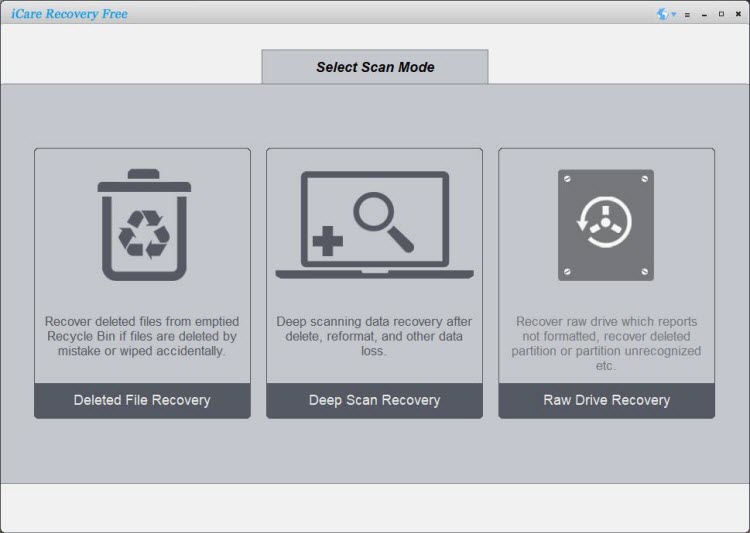
- Run iCare and choose the device (SD card) → choose "Deleted File Recovery" or "Deep Scan" (if formatted) → scan.
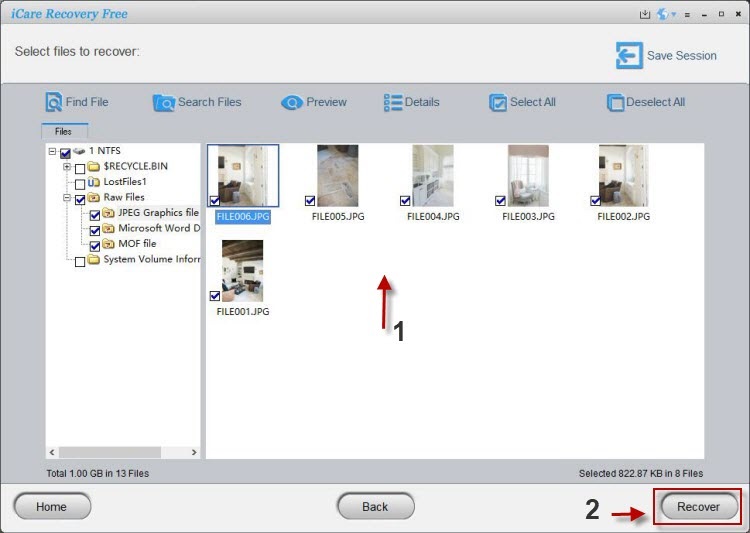
- Preview found photos, select what you need, and save recovered files to a different drive (never the same SD card).
Also read: sd card recovery online free, sd card data recovery
PhotoRec (open-source, powerful)
Overview: PhotoRec is an open-source, file-carving recovery tool that works across platforms (Windows, macOS, Linux) and can recover many file types by scanning raw sectors. It ignores the file system and can find files on formatted or damaged media. PhotoRec is powerful but has a non-graphical interface and can be intimidating for casual users.
Recuva (beginner-friendly)
Overview: Recuva is a free Windows utility with an easy wizard that recovers photos and other files. It’s a good first try for simple deletions and has a paid Pro version for advanced features. Many reviewers list Recuva as a top free option for casual users.
Other notable free tools
- Disk Drill Free — friendly UI, cross-platform (limited free recovery in some editions).
- TestDisk — companion to PhotoRec for partition/table repairs (powerful, technical).
- Other community-recommended tools — lists of top free tools consistently include iCare Free, PhotoRec, Recuva, and Disk Drill (Commercial) in 2024–2025 roundups.
Step-by-step example: how to recover photos with free software (safe workflow)
- Stop using the card (don’t write new files).
- Create a disk image (optional but recommended) — image prevents further changes to the original card.
- Run a free tool (e.g., PhotoRec or iCare Recovery Free) and perform a full scan of the card or disk image.
- Preview results and select the photos you want to recover.
- Save recovered files to a different drive (never back to the SD card).
- Verify recovered files — open a handful of images to confirm integrity.
Practical tips and caveats
- Always save recovered files to a different drive.
- Don't run "repair" utilities blindly. Tools like chkdsk can sometimes "fix" a file system but also make recovery harder; use them only when you understand the consequences or as a last resort.
- RAW camera formats: recovering RAW files (CR2, NEF, ARW) is harder than JPG. Photo-specific tools and deeper scans improve RAW recovery chances.
- Physical damage: if the card is physically damaged (bent, water-damaged, cracked), stop and consult a professional lab — do not attempt repeated reads, which can worsen damage.
- Free vs paid: free tools are often enough for simple deletes; for complex cases consider pro tools or a data recovery service.
Introducing iCare Recovery Free (short product note)
iCare Recovery Free is a free edition from iCare that targets deleted and formatted data recovery across multiple devices, including SD cards. It is positioned as a simple first-choice for users who want a GUI-driven, free recovery attempt before escalating to advanced tools or paid services. Download directly from icare-recovery.com to avoid bundled software or hidden virus if from other sources.
FAQ
Can I recover photos from an SD card without installing anything?
Sometimes. If the photos exist in a backup, cloud sync, the camera's internal memory, or are only hidden by file attributes, you can recover them without third-party recovery software. If photos were deleted or the card formatted, recovery software is usually required for dependable results.
Is iCare Recovery Free genuinely free?
The vendor offers a "Free" edition for basic recovery tasks and provides downloads and documentation on its site. For some advanced scenarios you might need a paid version or a different product; always verify the edition before installing.
What free tool should I try first?
For casual users try Recuva for simplicity; for maximum file-type support try PhotoRec; for an easy-guided Windows tool try iCare Recovery Free. If unsure, try one tool and, if unsuccessful, try another — but stop writing to the card between attempts.
How much does it cost to use professional recovery?
Costs vary widely: DIY software can be free or paid (from tens to hundreds of dollars). Professional data-recovery labs charge by complexity and damage — often several hundred dollars or more. Try free tools first if the case is not physically damaged.
Are there services that can recover photos from physically damaged cards?
Yes — specialized recovery labs can often extract data from physically damaged media, but this is pricey and should be considered only when the data is irreplaceable.
Final checklist (quick, printable)
- Stop using the SD card immediately.
- Check backups and cloud services.
- Try revealing hidden files and OS restore features.
- If needed, create a disk image and run free recovery software (iCare Recovery Free, PhotoRec, Recuva).
- Save recovered files to a different drive and verify them.
- For physical damage or complex cases, consult a professional lab.
Closing note: Recovering photos is often a race against time and writes to the card. Non-software methods are worth trying first, but for deleted or formatted cards, reputable free recovery tools (including iCare Recovery Free and PhotoRec) will usually give the best chance of success.